WhatsApp admin for UK trades
Get your trade admin done before you get home
Send a WhatsApp voice note or typed message from the van. VanVox turns the details into reviewable draft quotes, invoices and expense records, ready for you to check before anything is finalised.
VanVox
WhatsApp workflow
Draft invoice
- Work
- Tap replacement
- Total
- Review amount
- Status
- Draft
Reply YES only when you are ready to finalise.
Illustrative conversation. Details are fictional.
MTD for Income Tax is now live
The first qualifying cohort started on 6 April 2026. VanVox helps capture cleaner records from WhatsApp inputs; it does not submit quarterly updates or tax returns to HMRC.
Verified VanVox capabilities
Old way / with VanVox
Capture the job while it is still fresh
Built around the way tradespeople already send job notes, prices and photos through WhatsApp.
Old way
- Try to remember materials, labour and customer details later.
- Type admin at home after a full day on the tools.
- Keep quotes, invoices and receipts split across notes, messages and files.
With VanVox
- Send the details by WhatsApp voice note or text before you leave site.
- Review a structured draft in the same conversation.
- Keep quotes, invoices, receipts and records moving through one workflow.
How it works
From site note to reviewed document
The important boundary is simple: VanVox drafts, clarifies and prepares. You explicitly confirm before anything is finalised.
- 1 Send job details by voice note or text.
- 2 VanVox extracts the customer, work, line items and totals it can identify.
- 3 Missing information is clarified in WhatsApp.
- 4 You review the draft.
- 5 You explicitly confirm with YES.
- 6 The document is generated and returned through the supported workflow.
Accessible conversation illustration
Draft invoice ready to review
- Customer
- Alex Taylor
- Work
- Shower pump replacement
- Status
- Draft only
Reply YES to confirm, or reply with changes.
Sample conversation for illustration only. Names and job details are fictional.
Outcomes
Useful admin control without leaving WhatsApp
Fresh job details
Capture what happened while the materials, time and customer request are still clear.
Professional documents
Create consistent quote and invoice drafts with structured line items and totals.
One workflow
Keep quotes, invoices and expense records moving through the WhatsApp-led flow.
Control before finalisation
Review the draft, request changes and confirm only when it is right.
Beta pricing
Free during the current beta
The current beta terms say access is free for now. If paid access is introduced later, VanVox will give notice before it starts.
Free during beta
Use the current beta while invites are opened in stages.
Clear notice before paid access
Pricing will be made clear before the beta moves to paid access.
Start in WhatsApp
The homepage CTA opens the supported WhatsApp start route.
For your trade
Start with your trade
Trade-specific examples show how WhatsApp notes become reviewable draft admin.
Call-outs, repairs, installs, parts and labour captured before the next job.
Fault-finding, small works and certification-related notes turned into a draft to review.
Site notes, labour, materials and variations gathered into a draft before sending.
Service, repair and install details kept clear for review and confirmation.
Repairs, access notes and materials captured while the job is still fresh.
Room-by-room prep, materials and finish notes shaped into a draft to check.
Capability proof
Sample document previews
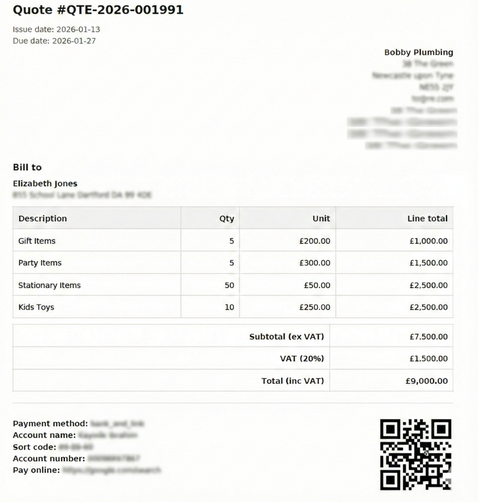
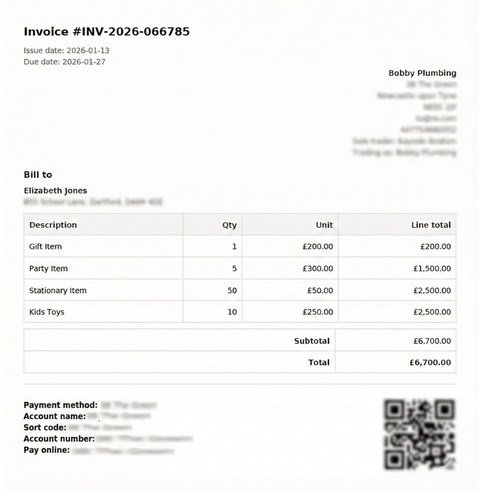
Fictional previews show the professional PDF output style already represented in the repository.
Sample quote (non-VAT)
Sample document
Sample invoice (non-VAT)
Sample document
Sample invoice (VAT)
Sample document
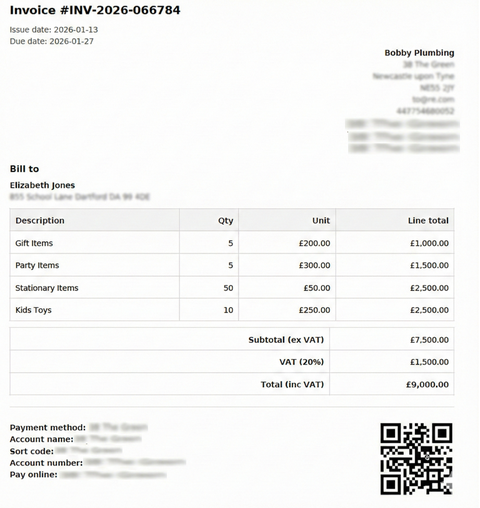
Sample contains fictional details.
Digital records and MTD
Record capture is not the same as tax filing
VanVox helps organise the records that sit behind your quotes, invoices and expenses. An accountant or compatible tax workflow may still be required for submissions.
Income records
Draft quotes and invoices keep customer, line item, date and total information in a structured format.
Expense records
Receipt and expense workflows support cleaner business records when details are captured through WhatsApp.
MTD preparation
VanVox can help prepare organised digital records for Making Tax Digital-related record keeping, without claiming HMRC submission.
FAQ
Questions tradespeople ask before starting
Can I use voice notes and typed messages?
Will anything be sent without my approval?
What about VAT?
Can it help with expenses and receipts?
Is my data private?
Does VanVox submit MTD returns?
Start in WhatsApp
Finish the admin before the drive home
No new app to learn. Send the details in WhatsApp, review the draft, and confirm only when it is ready.

WhatsApp help
If the button does not open WhatsApp, use WhatsApp Web and paste the starter message.